Data takeout: YouTube (App)
Device: Browser | App
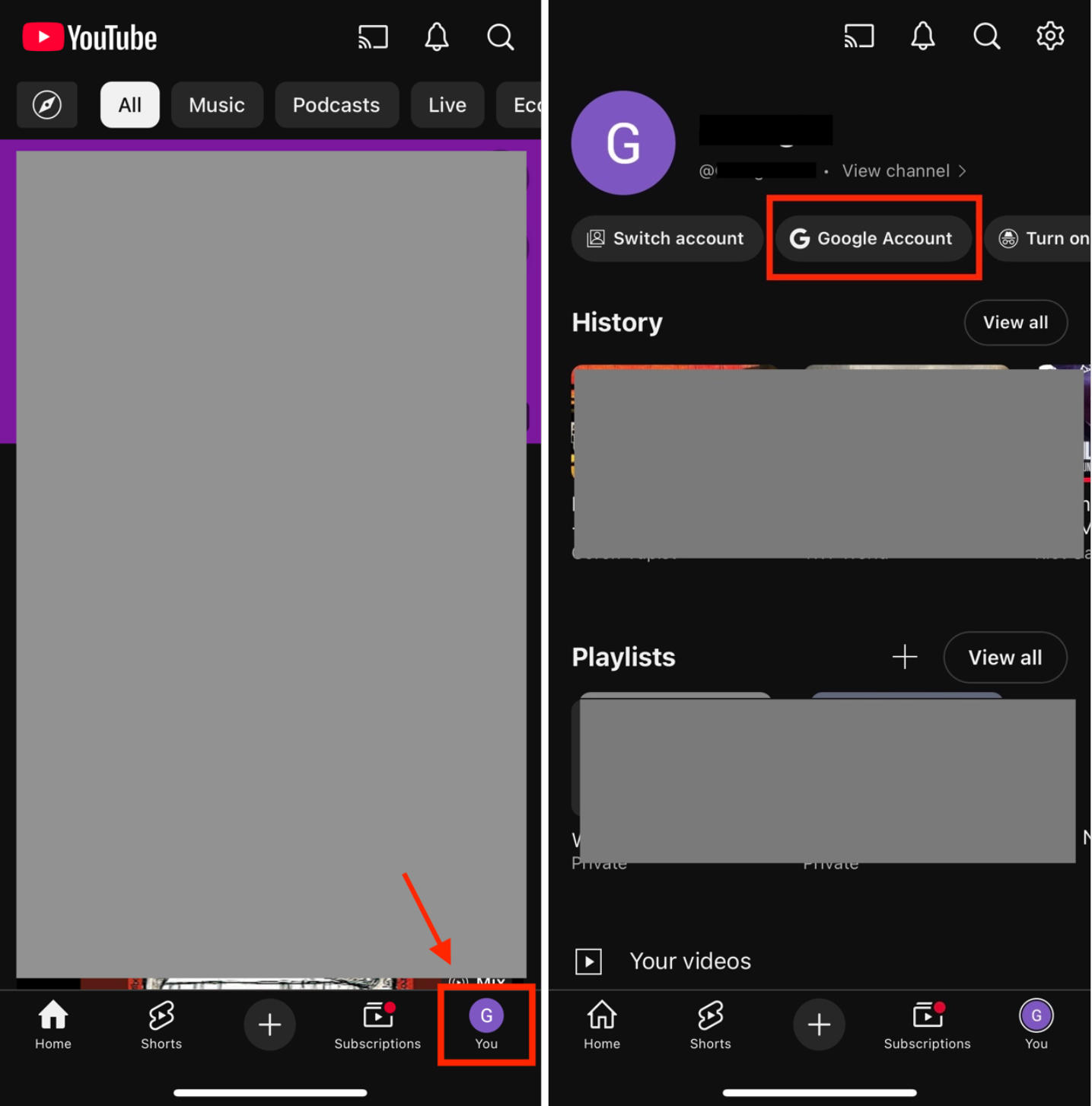
Open the YouTube app on your phone then click on your profile picture at the bottom right of the screen. Then click on Google Account at the top of the page.
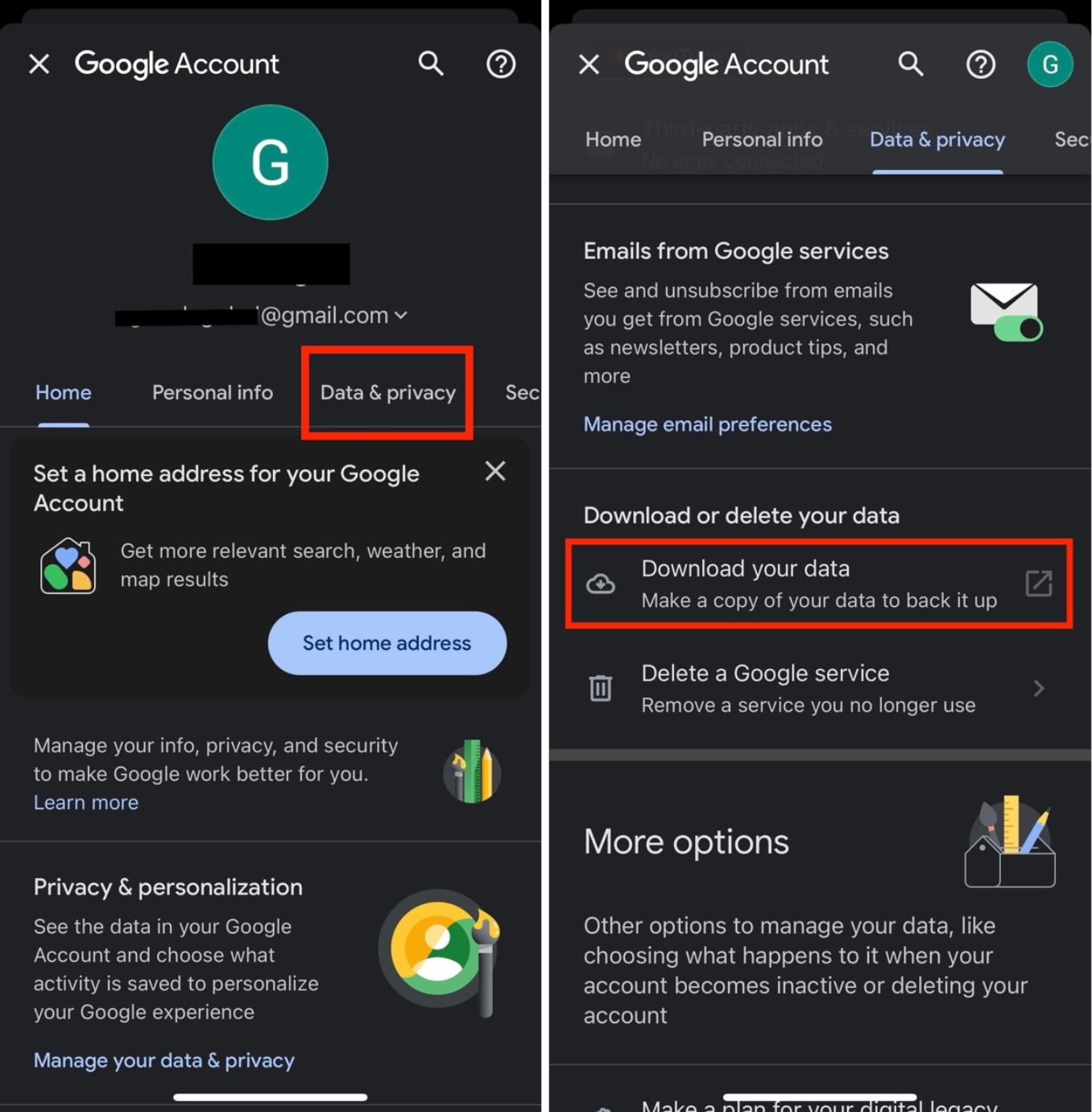
The following page will open. Click on Data & privacy.
Then scroll down and click on Download your data.
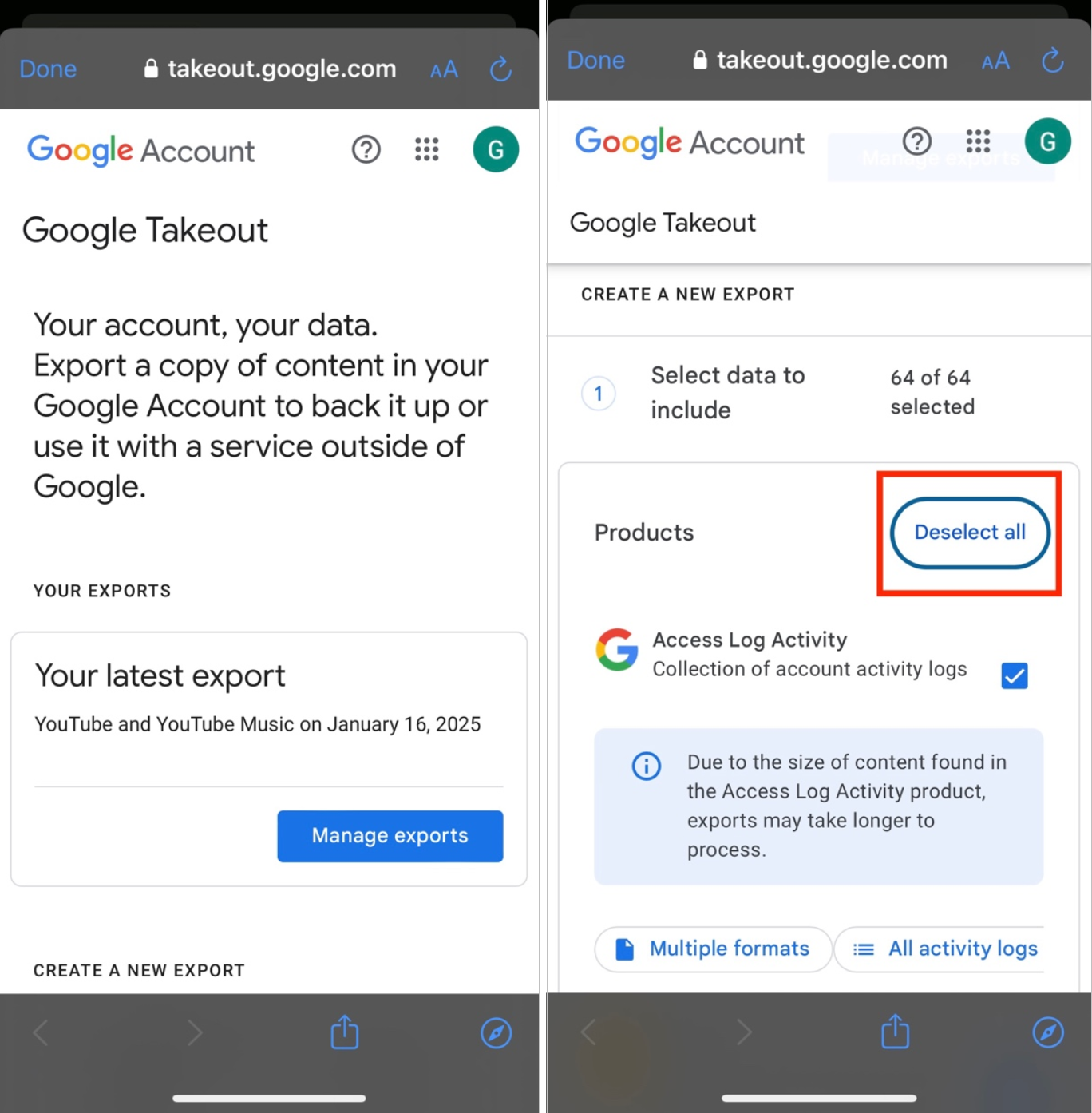
The Google Takeout page will appear. Scroll down and click on Deselect all, as we are only requesting your YouTube data.
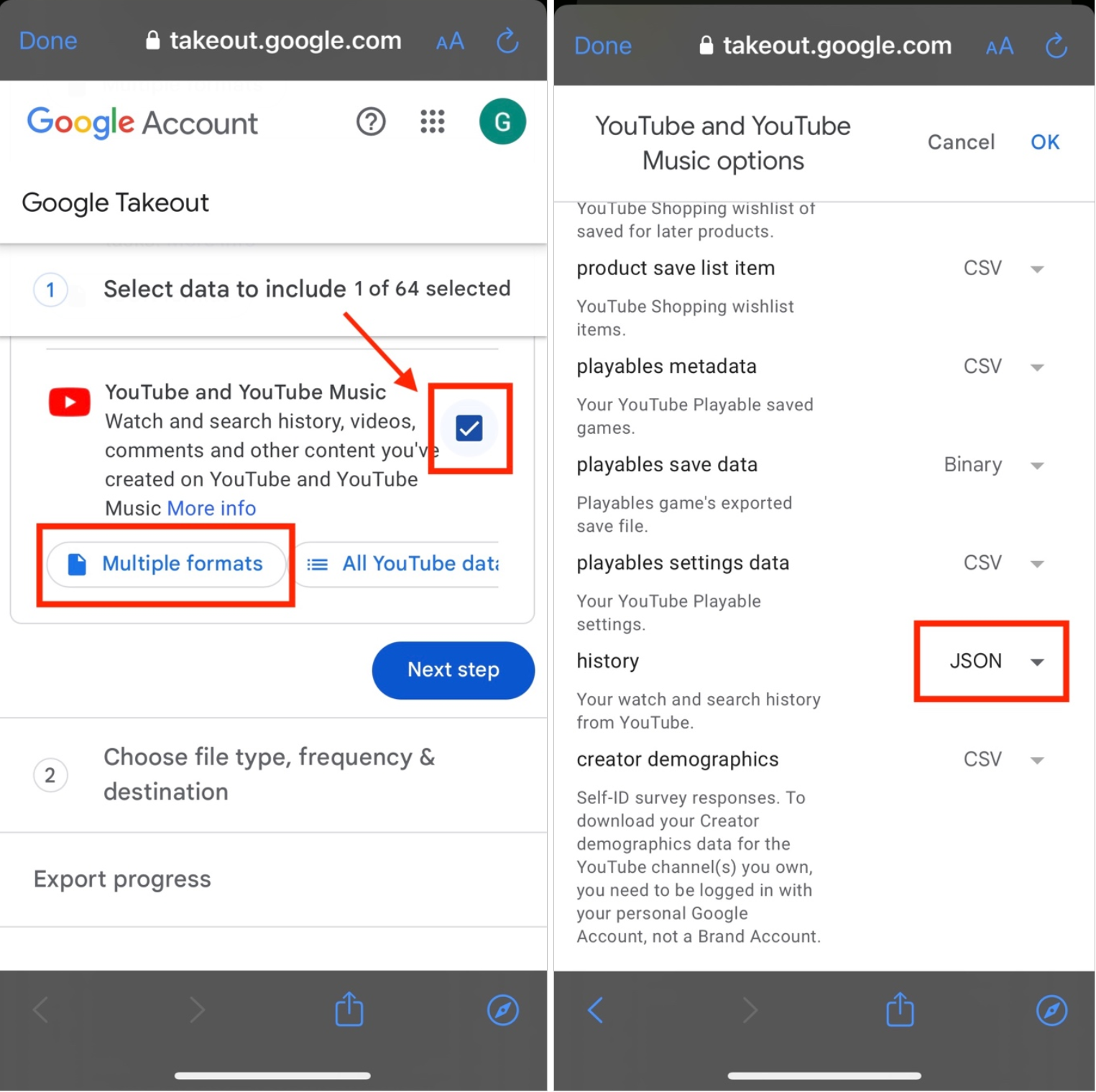
Next, you will have to select the amount and type of data you would like to download. Scroll down and select YouTube.
Then click on Multiple formats. Once you click on Multiple formats, scroll down and select the format for the history file. It will give you two options: HTML or JSON. Select JSON.
Then click on OK at the top of the page.
The previous page will appear again. Make sure that the All YouTube data included is selected.
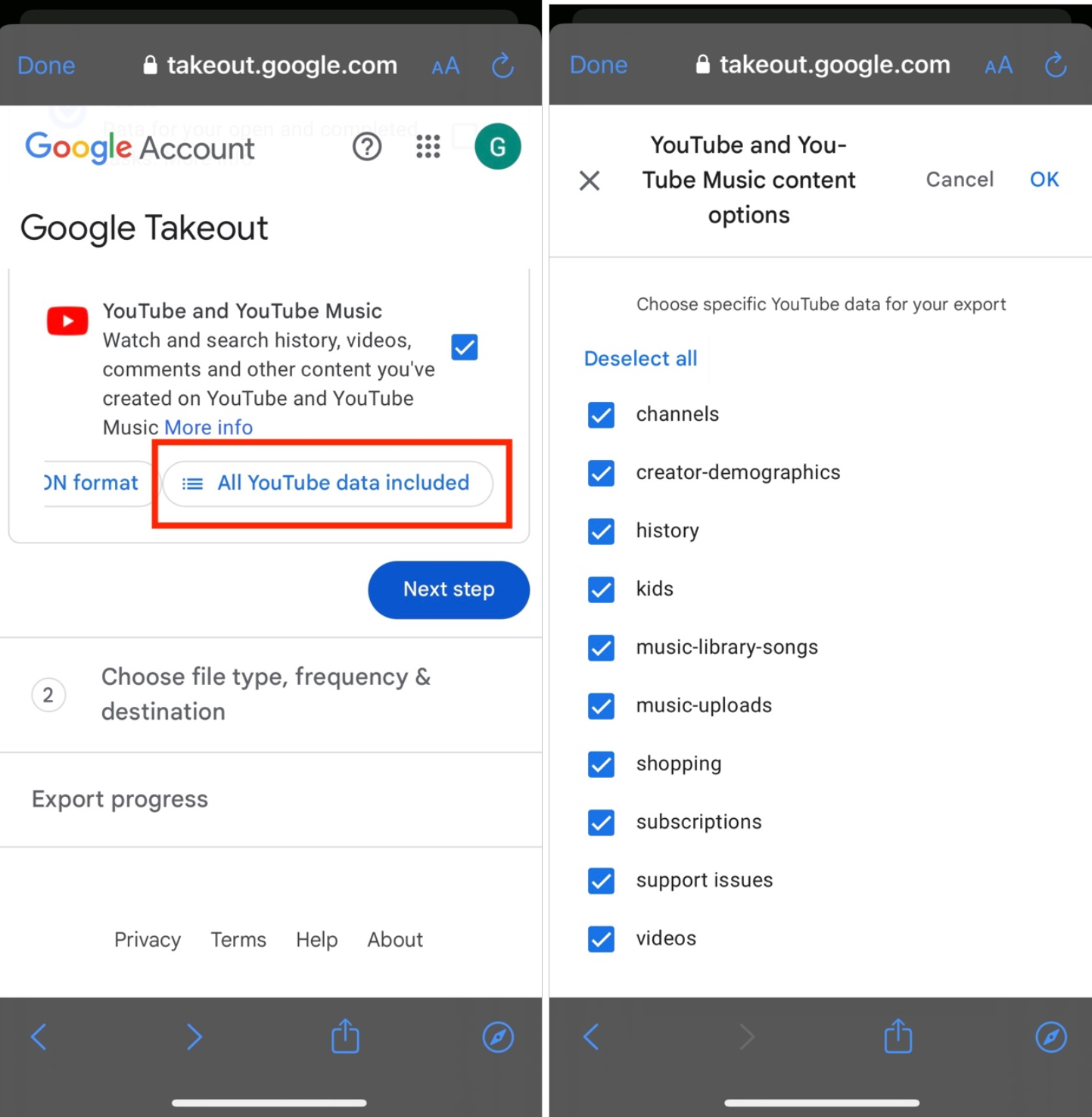
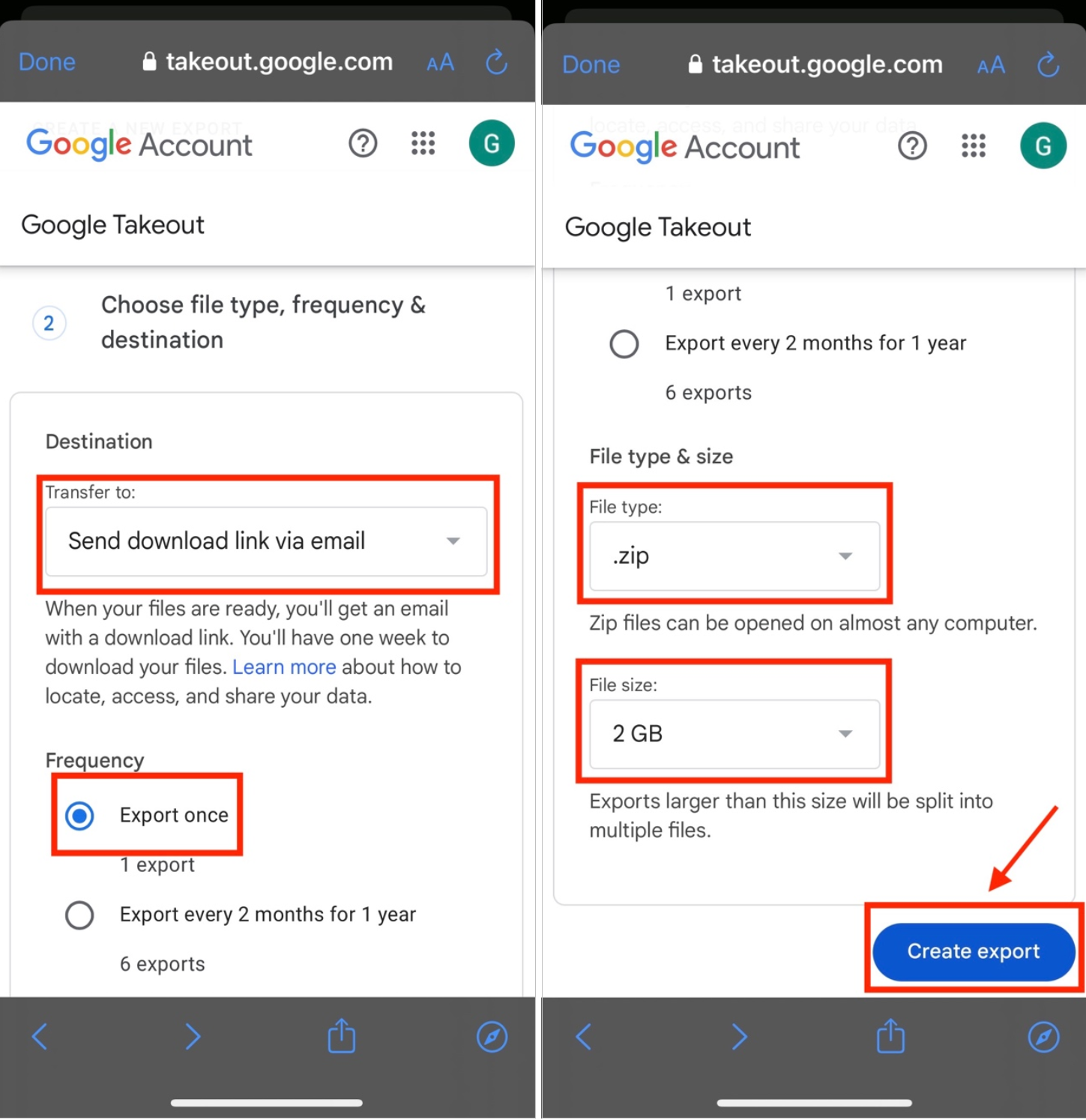
Click on OK at the top of the page then click on Next step. You will then need to choose the file type, frequency, and destination.
Select the following:
- Transfer to: Send download link via email.
- Frequency: Export once.
- File type: .zip.
- File size: 2 GB.
Then click on Create export.
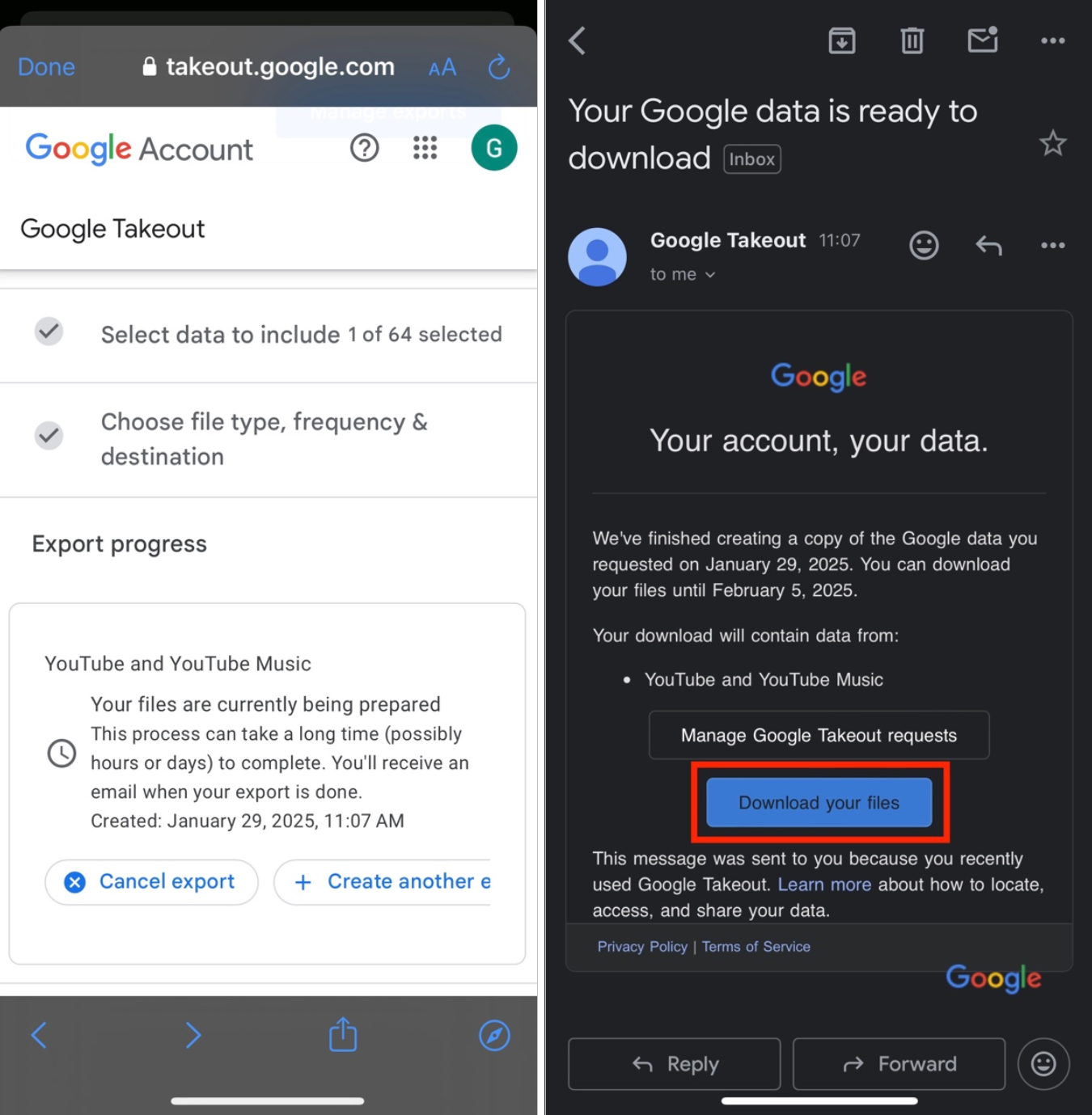
The following page will appear, and you will need to wait for your data to be ready for download.
Once the data is ready, you will receive an email from Google Takeout (noreply@google.com). Click on Download your files.
Once you click on Download your files, you might need to sign in again. If so, enter your gmail account and password.
The following page will appear, and click on Download.
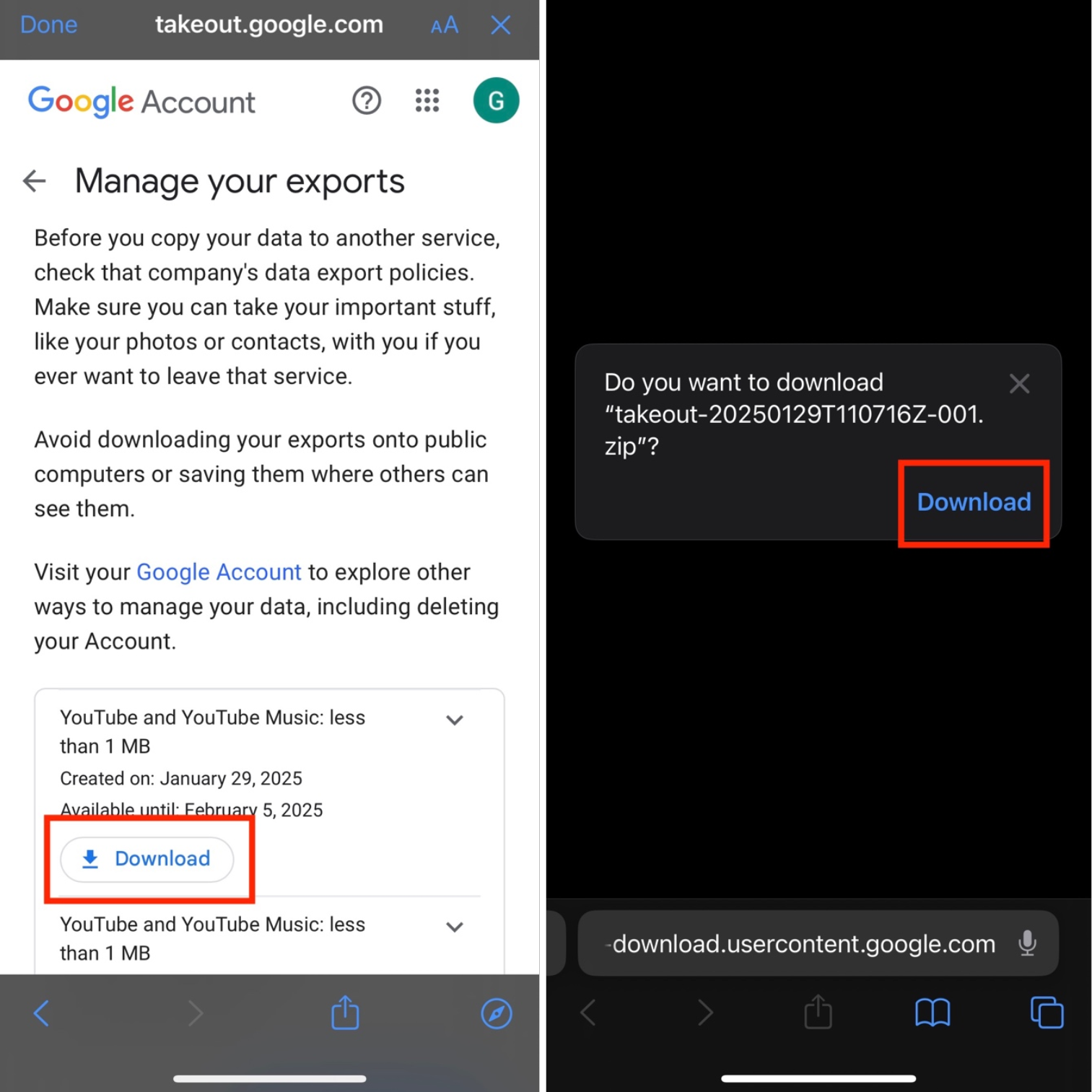
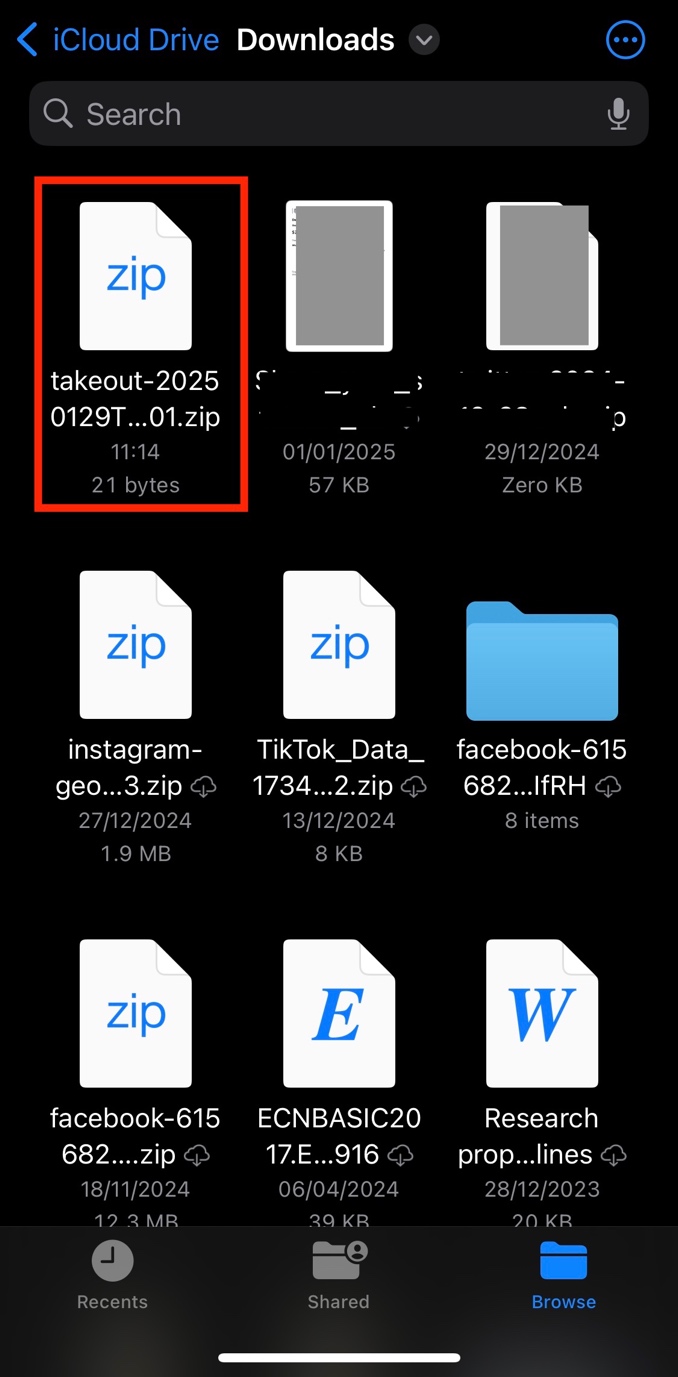
The file will then be downloaded on your device. Once the download is complete, it will be saved on your device in the Downloads folder, which will look like this: