Data takeout: Instagram (Browser)
Device: Browser | App
1. Log in to Instagram and open the Download your information page
Open Instagram and log into your account: https://www.instagram.com/
Once you sign in, you will need to find the Download your information page on your Accounts Center. You can do this directly by clicking on: https://accountscenter.instagram.com/info_and_permissions/dyi/?entry_point=deeplink_screen>
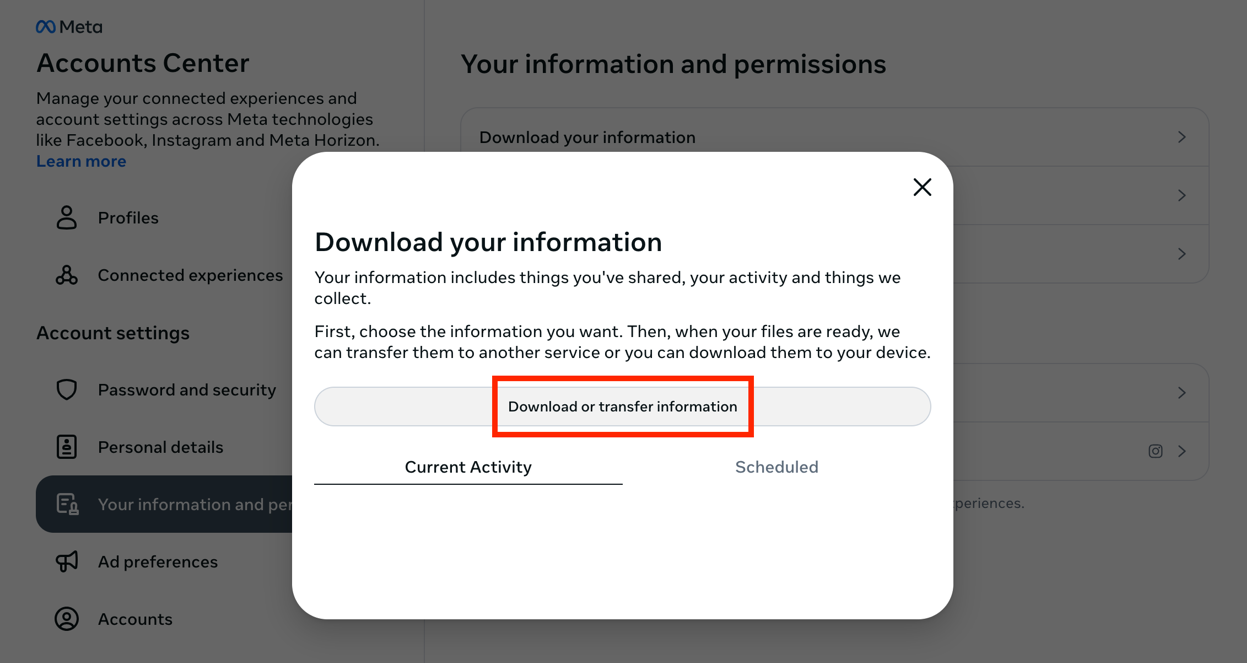
2. Click on Download or transfer information.
Once you click on Download your information, the following page will appear:
Click on Download or transfer information.
3. Select the amount of information you would like to download
Click on Available information.
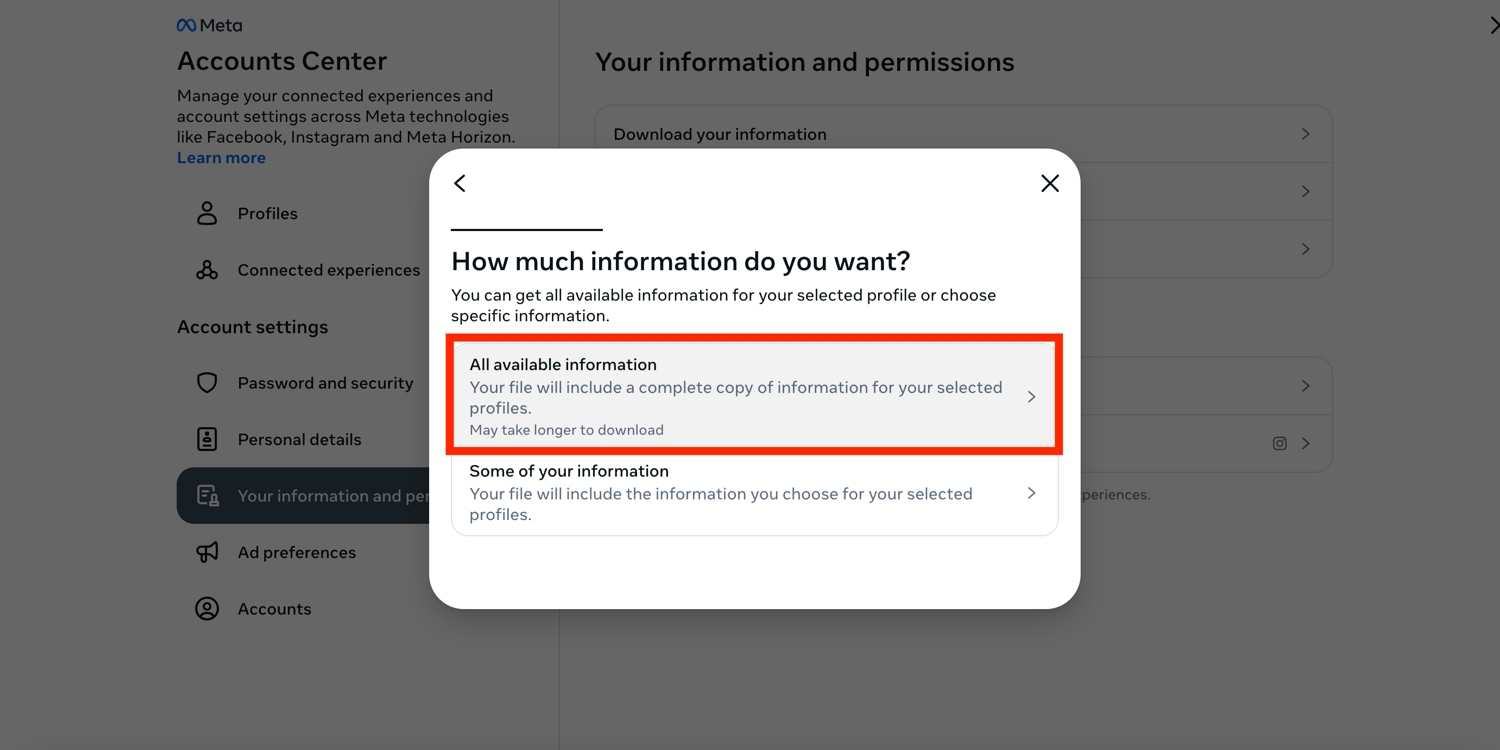
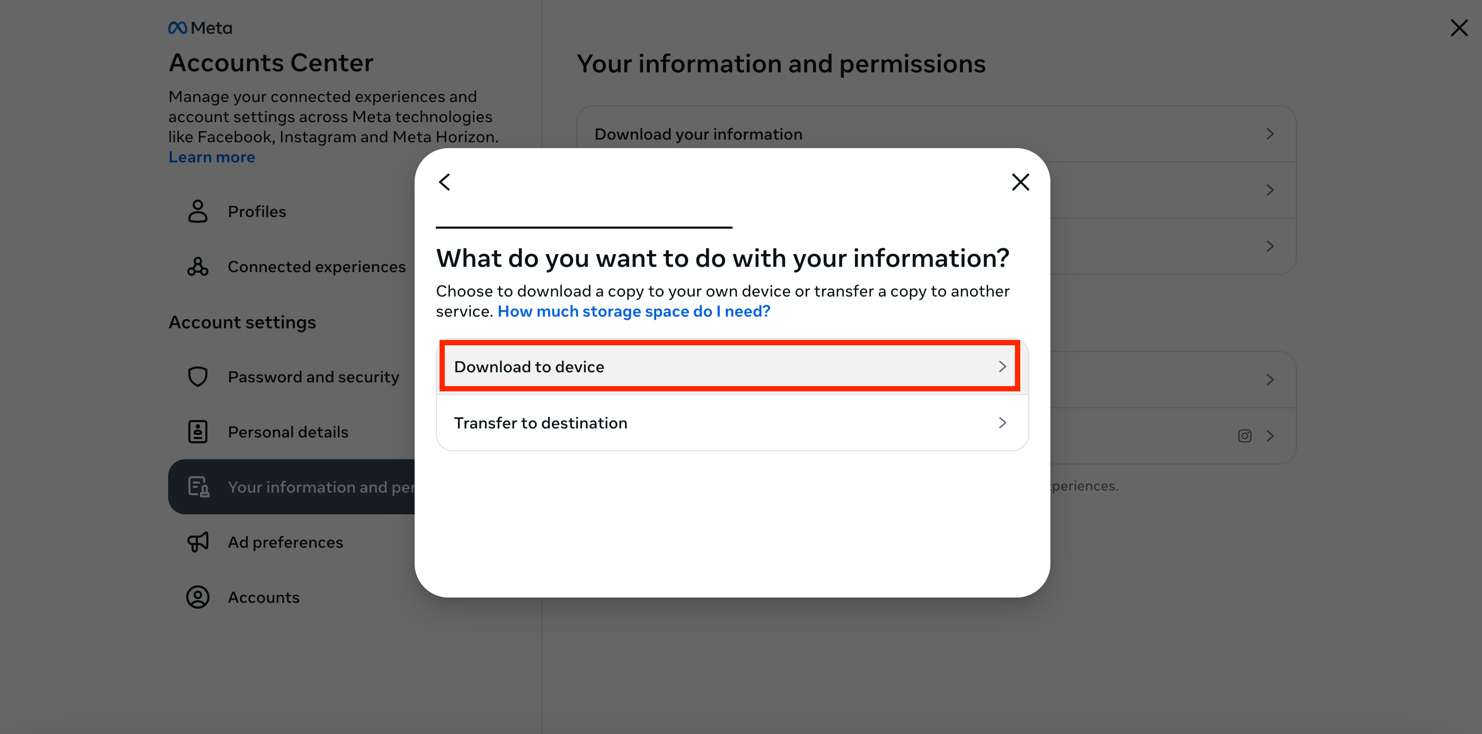
Once you click on Available information, select Download to device.
4. Choose your file options
The following will appear to select your file options:
Select the Date range: All time [note: Date range can be customised]
- Select who to notify: [email address]
- Select the format: JSON
- Select the media quality: Medium [other options: Low/High]
- Then click on Create files.
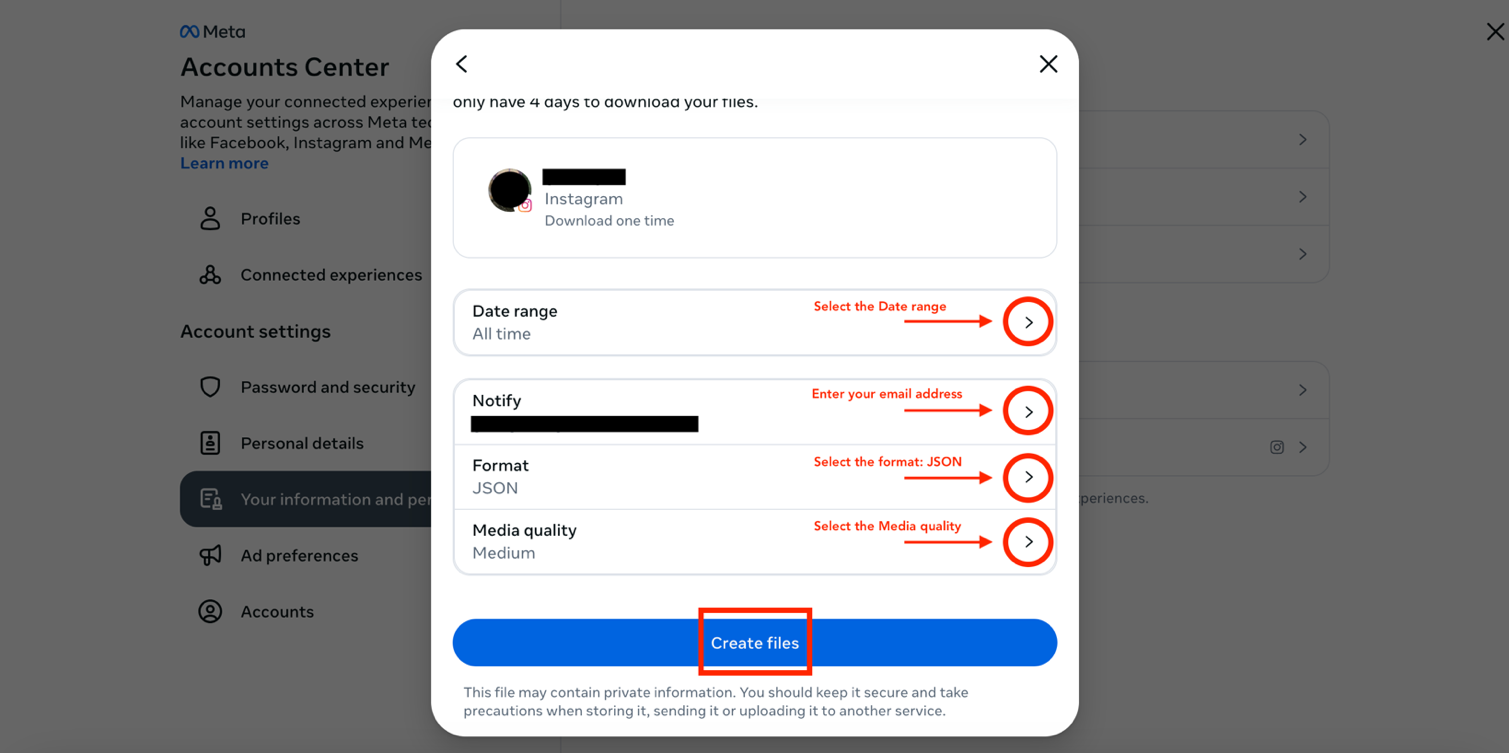
Once you click on Create files, this will appear:
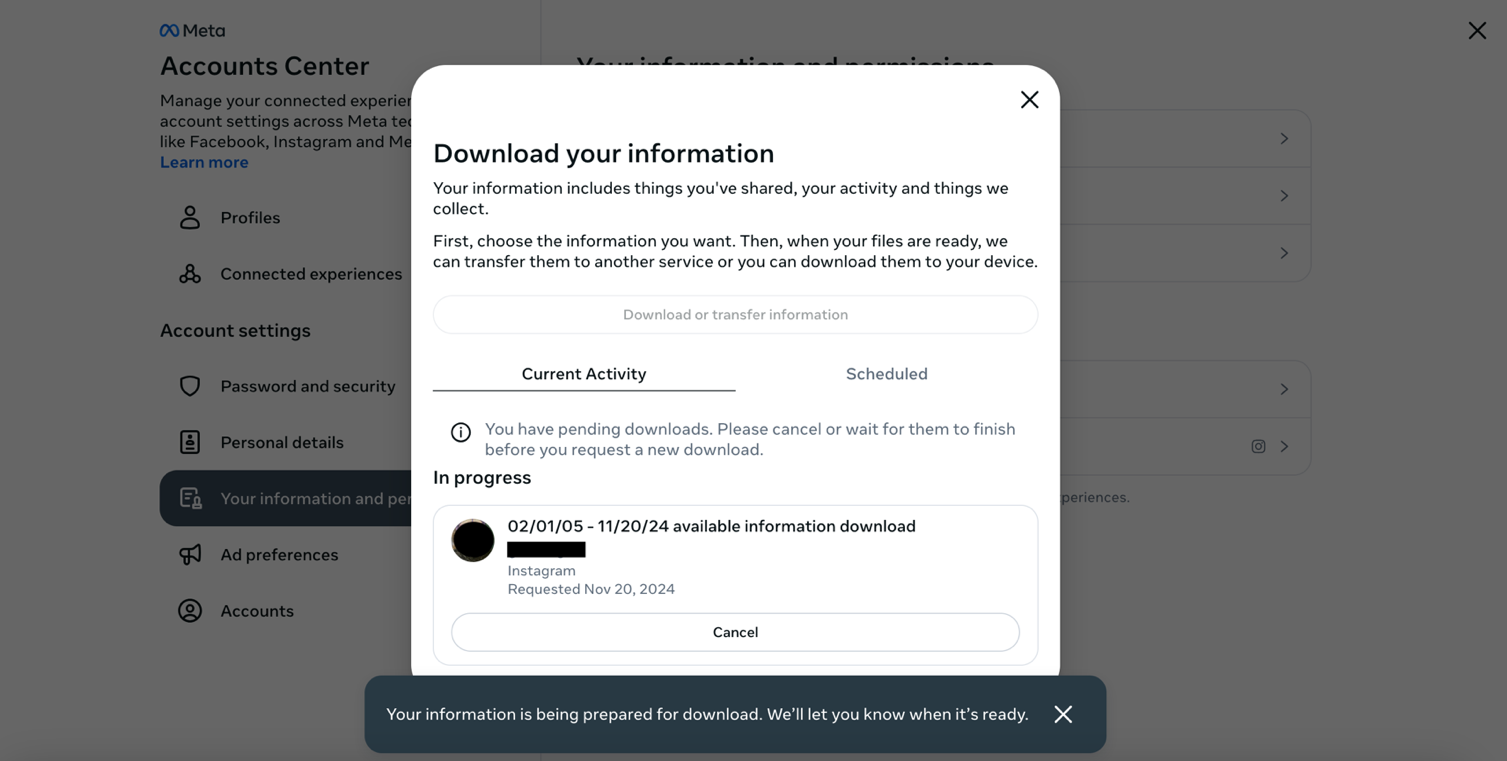
5. Check your email for the download link
Instagram [security@mail.instagram.com] will send you an email with a download link within [30 minutes [note: it took 15 with me with the file options I selected]{.mark}]. Make sure that you are signed in to the email you entered in the previous step. If you have not received the email within a few hours, make sure to check your junk mail folder.
In the email, click download your information. You will have to do this within four days of requesting the information, otherwise you will have to request a new download.
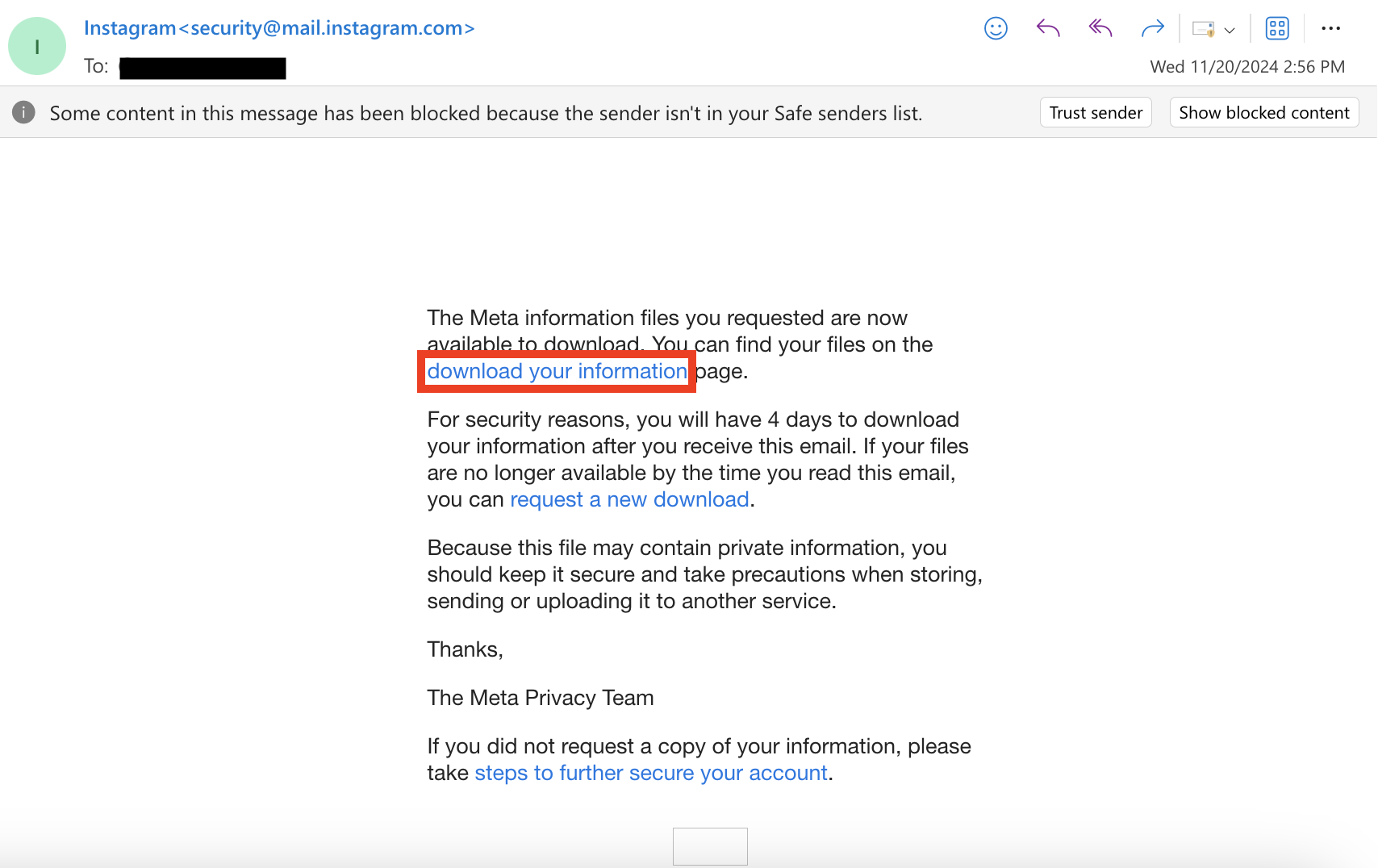
6. Start downloading the information to your device
Once you click on the link above, the following page will appear:
Click on Download on the bottom left.
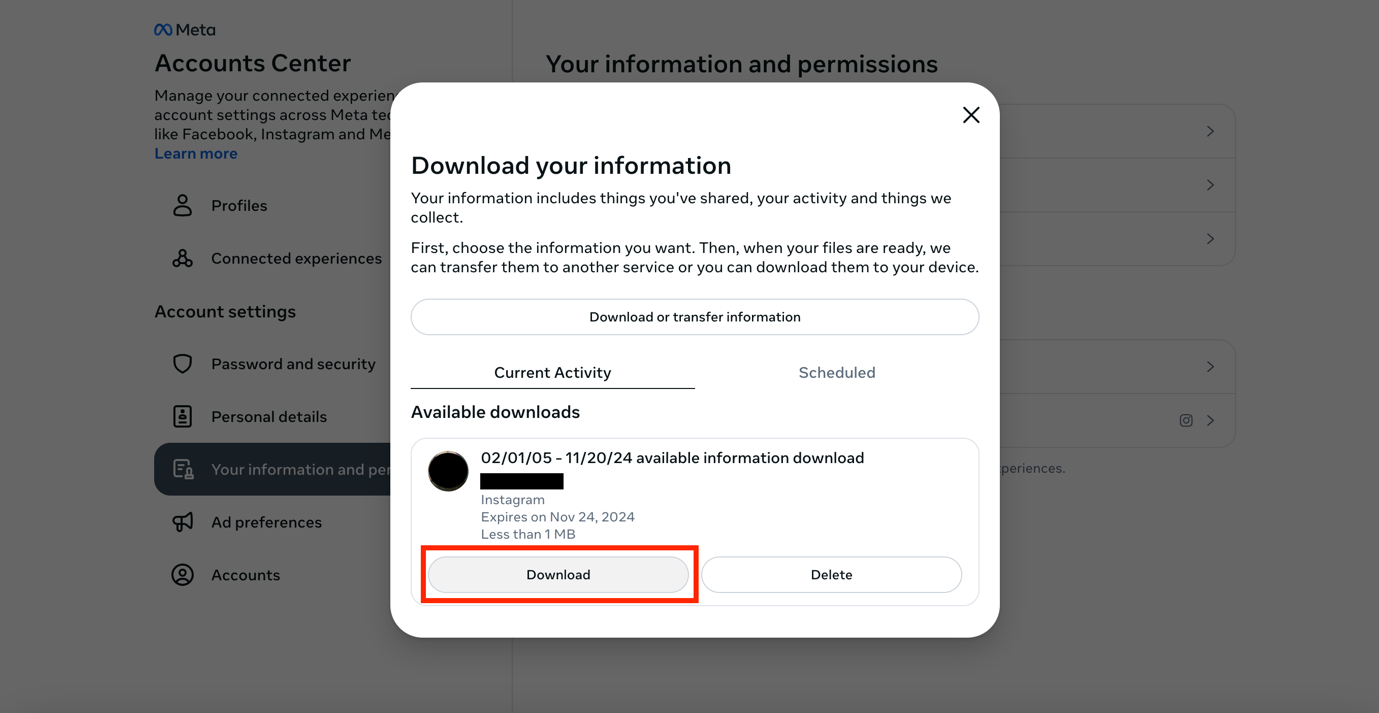
Note that you might be asked to re-enter your Instagram password for security reasons. If so, enter your password and click on Submit.
The file will start downloading on your device.
7. Locate the downloaded file on your device
The information will be downloaded to your device as a ZIP file and will be saved on your device in the Downloads folder.