Data takeout: Facebook (iOS)
Device: Browser | iOS App
1. Sign in on the Facebook app
Open the Facebook app and sign in to your account.
2. Find the Accounts Center
To request the information, you will have to find the Accounts Center, which is located in the Settings page.
First, click on Menu on the bottom right of your screen. Scroll down and click on Settings & privacy.
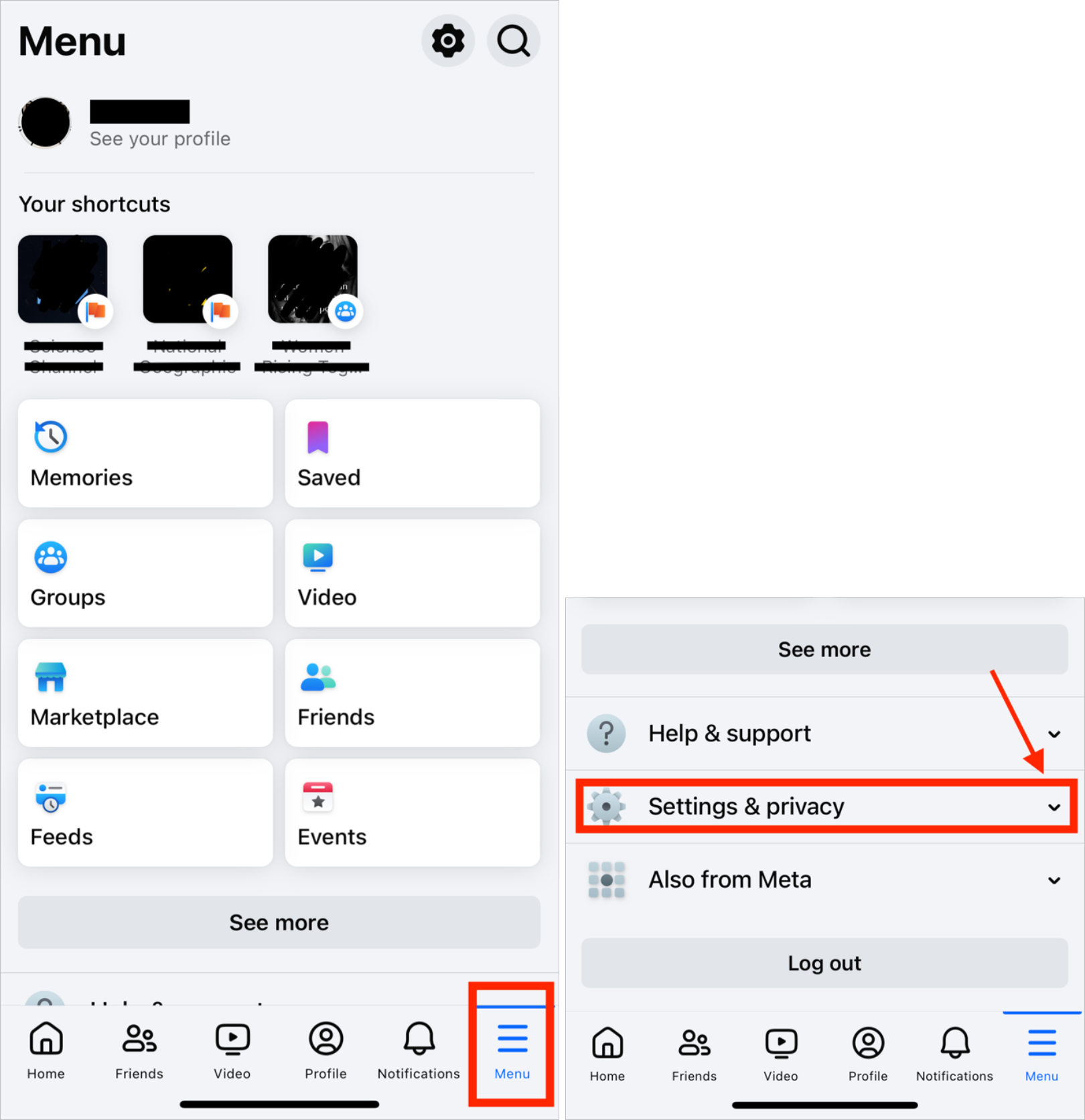
Then click on Settings. This will open another page. Click on See more in Accounts Center.
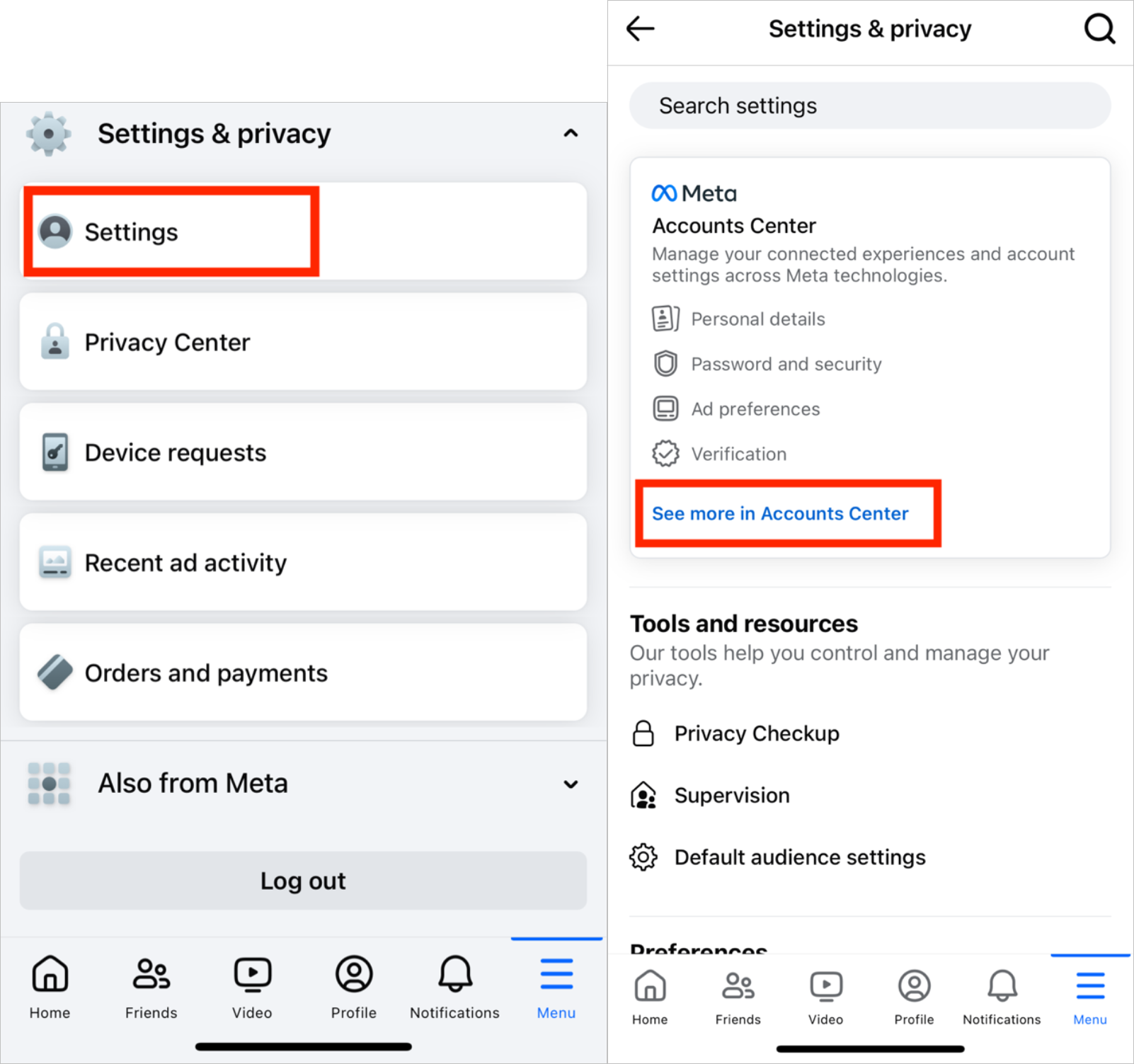
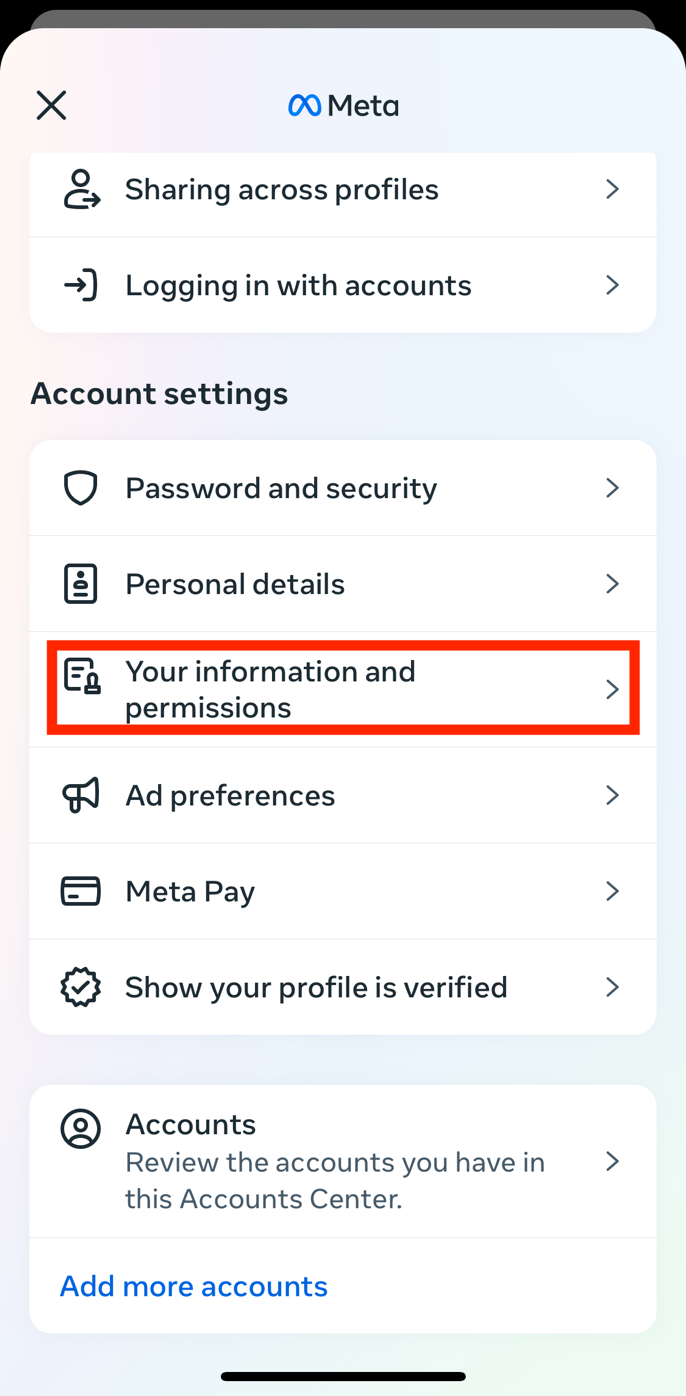
Once you reach the Accounts Center, click on Your information and permissions.
3. Click Download or transfer information
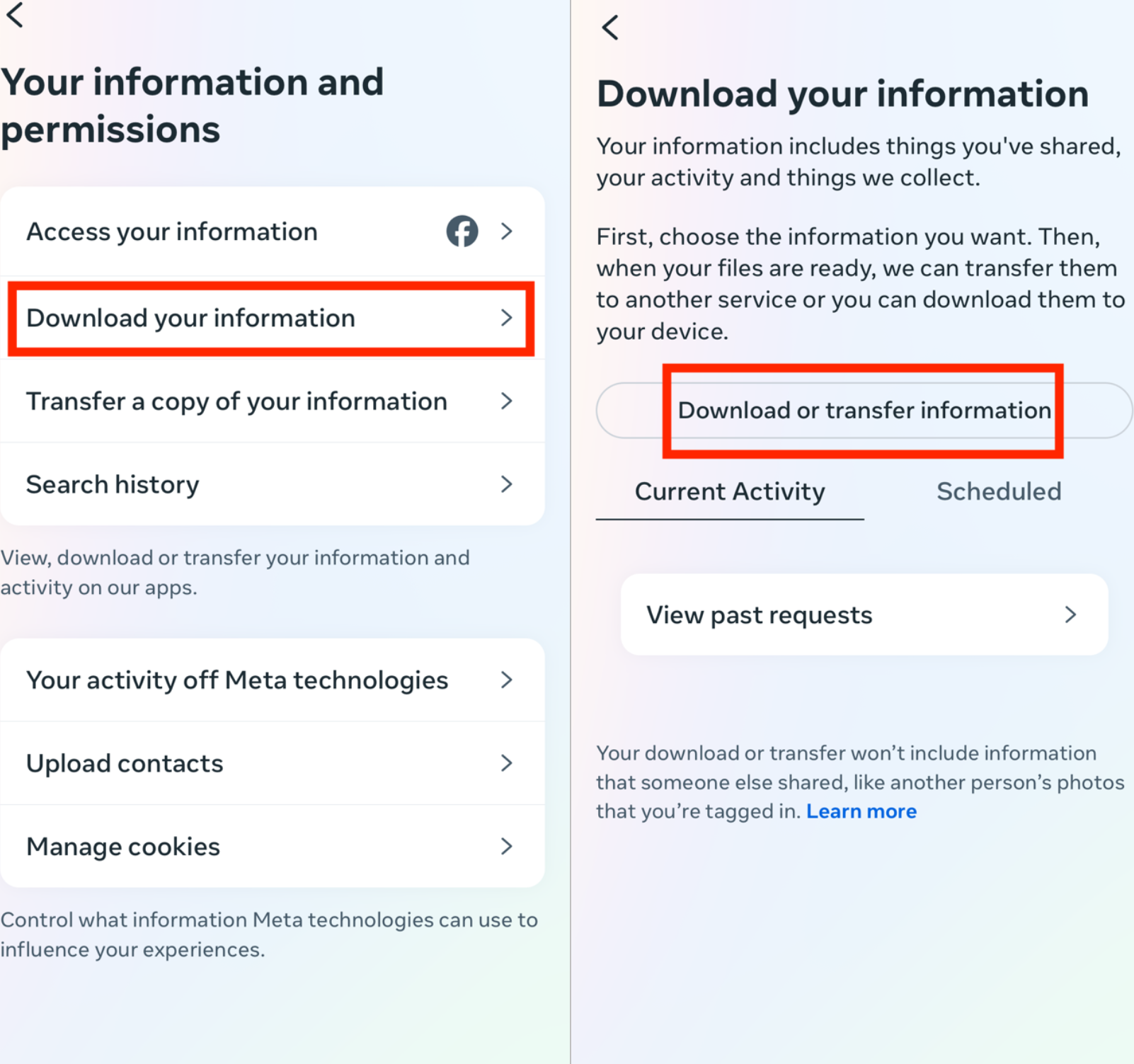
Click on Download your information, then on Download or transfer your information.
4. Select the amount of information you would like to download
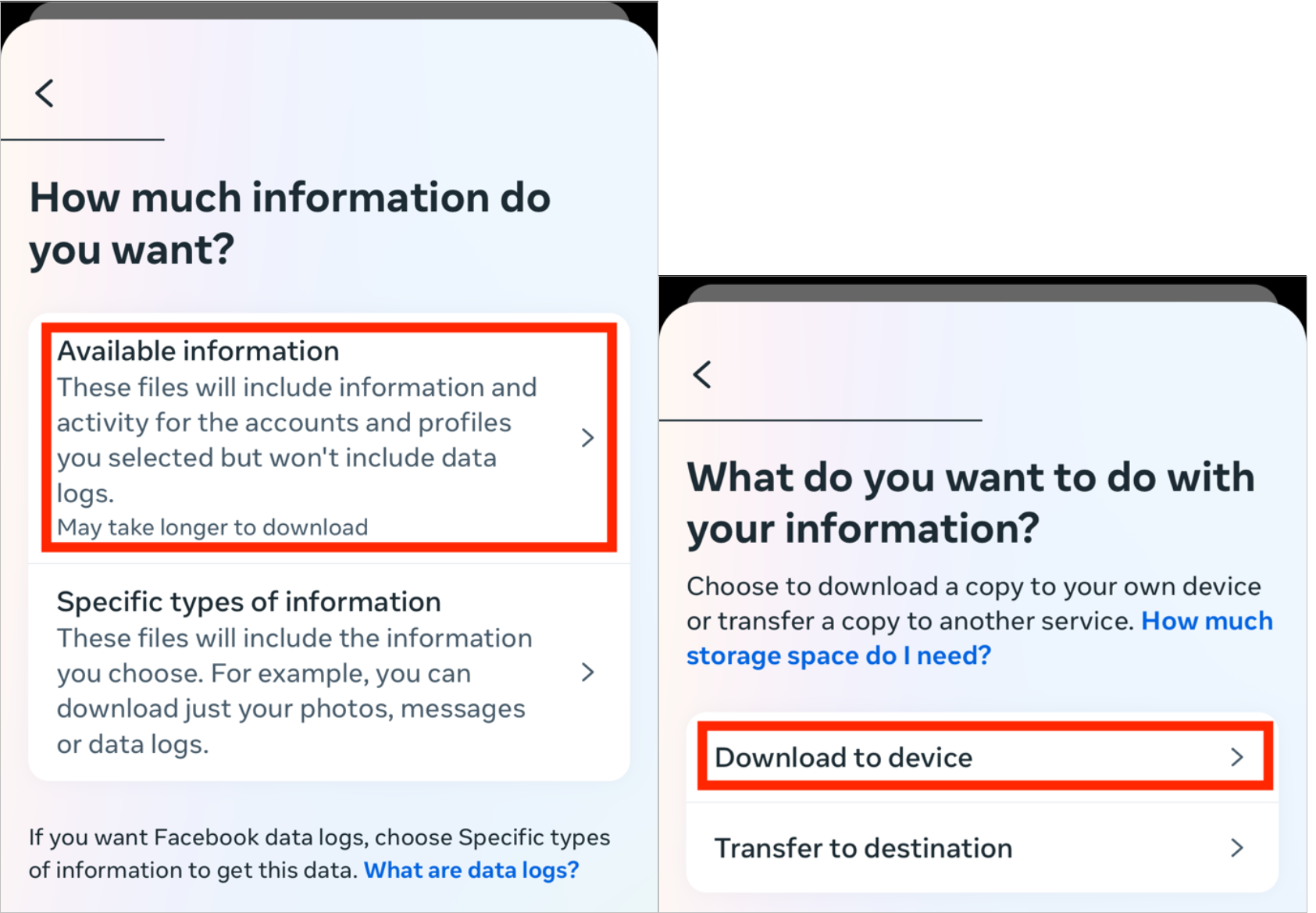
You will be asked how much information you would like to download. Click on Available information.
Then click on Download to device.
5. Choose your file options
You will then have to specify the date range, who to notify, the format, and the media quality. Select the following:
- Date range: All time
- Notify: [enter your email]
- Format: JSON
- Media quality: Medium
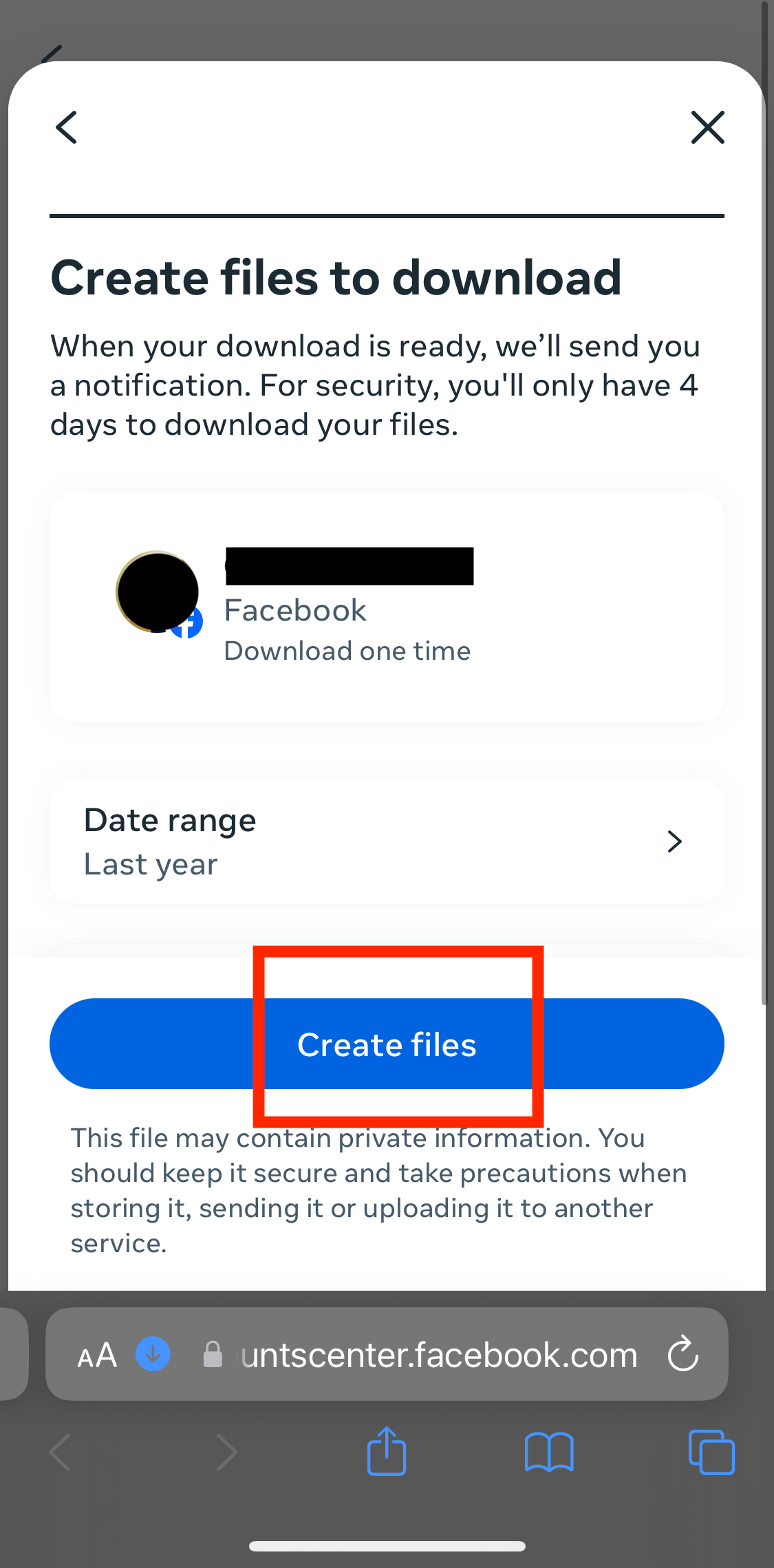
Then click on Create files.
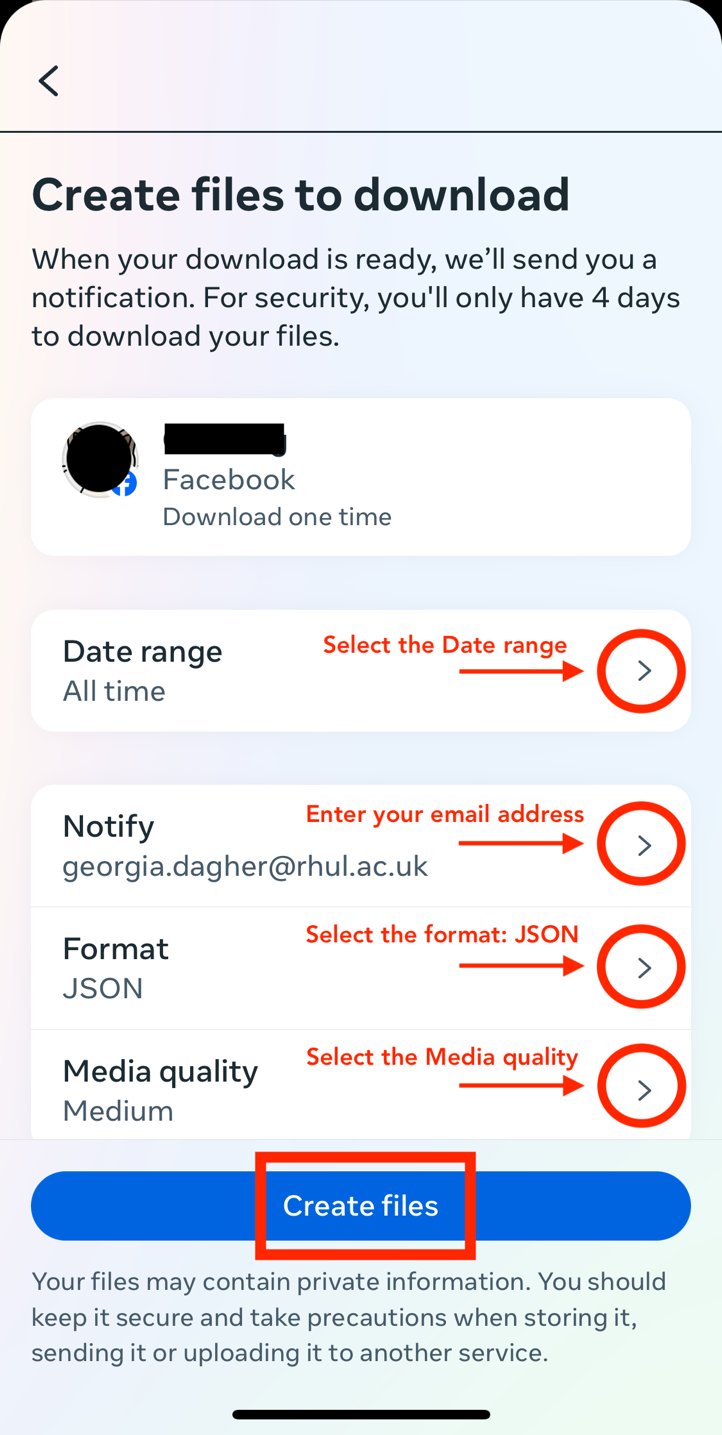
Once you click on Create files, the following page will appear:

6. Check your email for the download link
You will then receive an email from Meta
[notification@facebookmail.com] with the download link. Make sure that
you are signed in to the email you entered in the previous step. If you
have not received the email within a half an hour, make sure to check your junk mail folder.
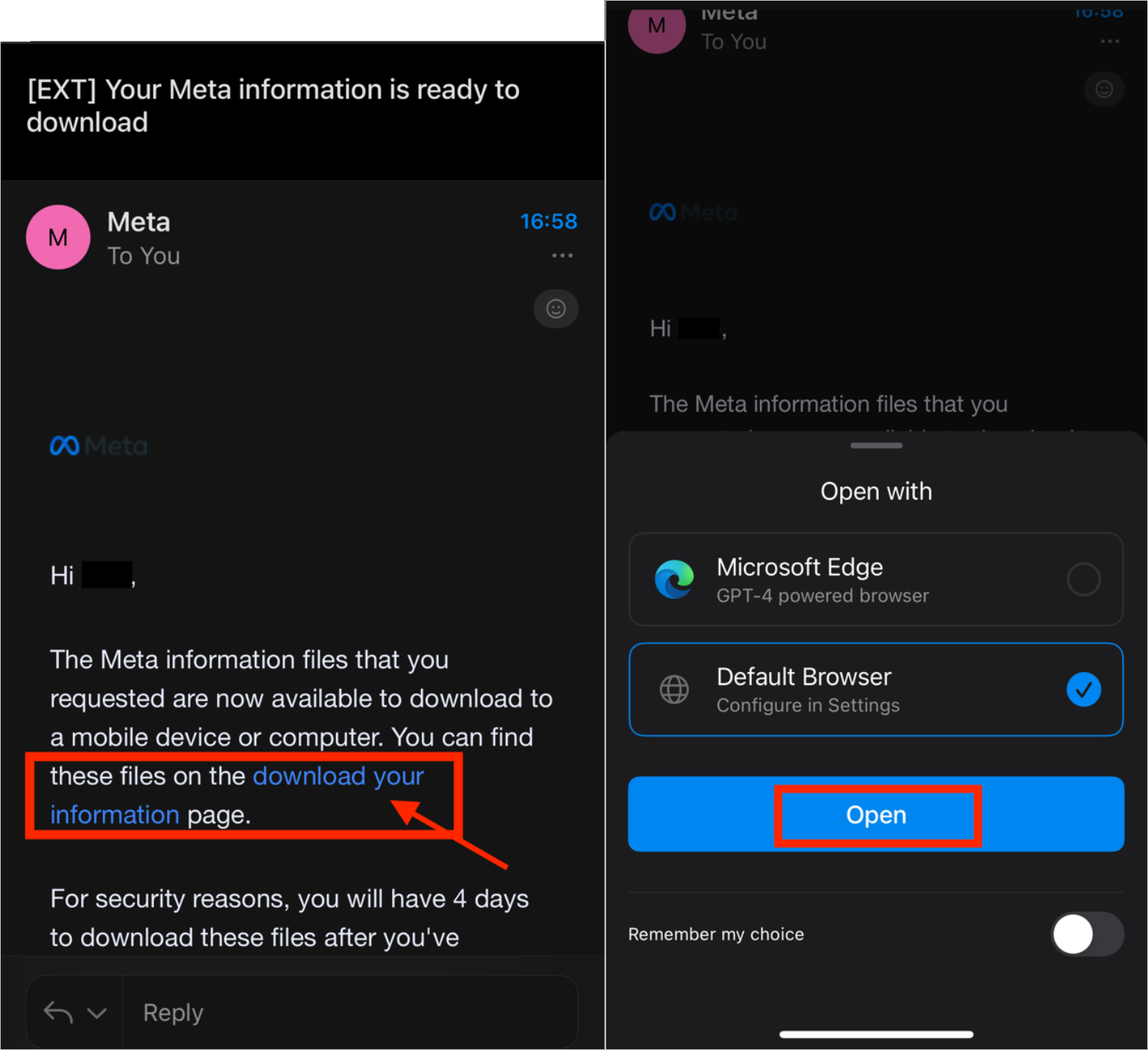
In the email, click download your information. You will have to do this within four days of requesting the information, otherwise you will have to request a new download.
Once you click on download your information, your device will ask you which browser to open the file in.
7. Start downloading the information to your device
Then open the Facebook app again, and click on Download.
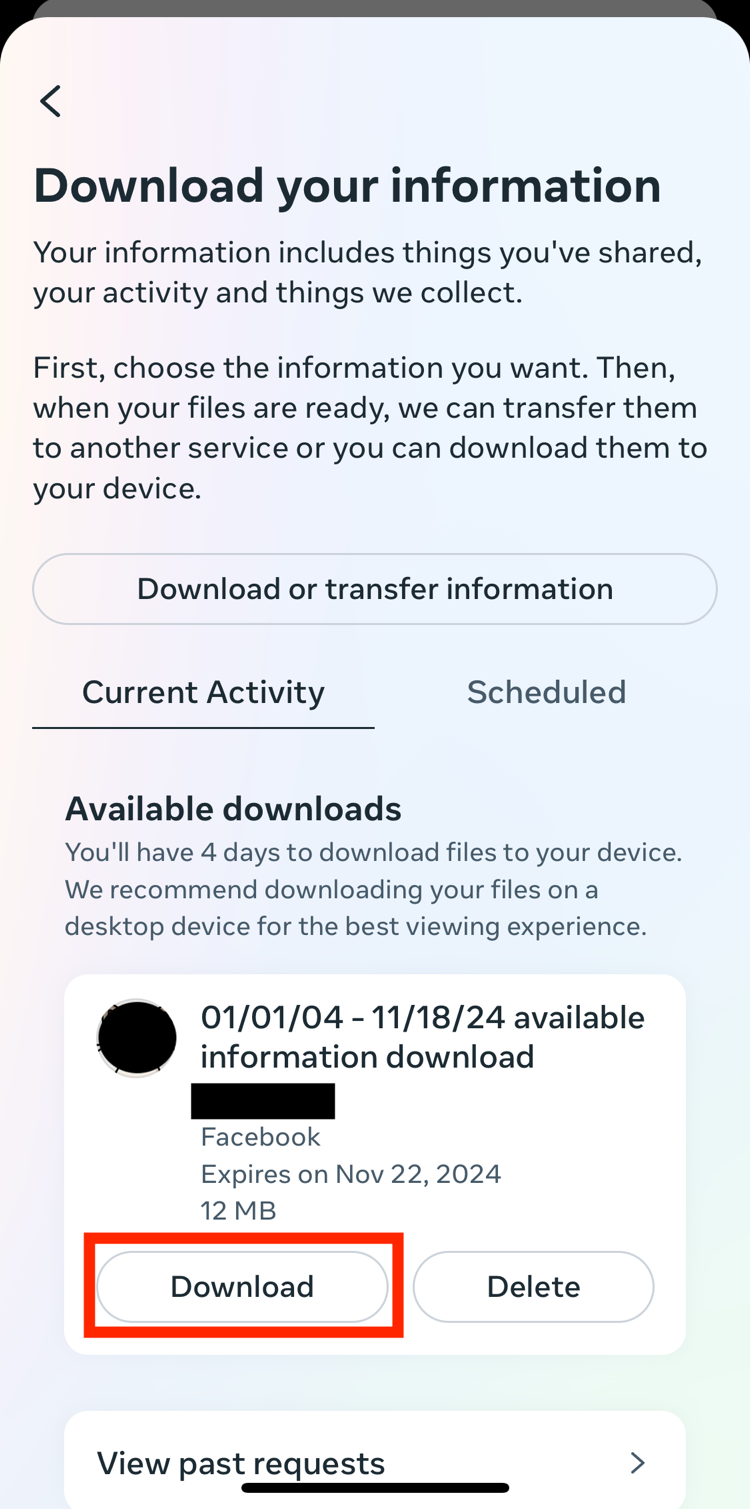
You will be asked to re-enter your Facebook password. Enter your password and click on Continue.
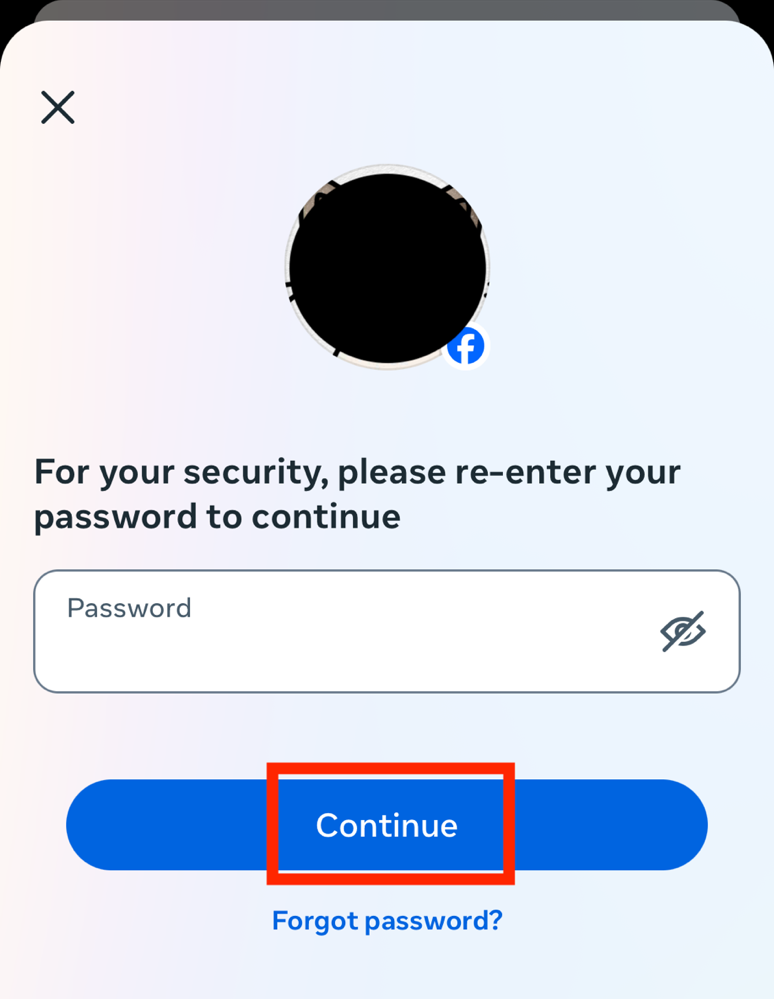
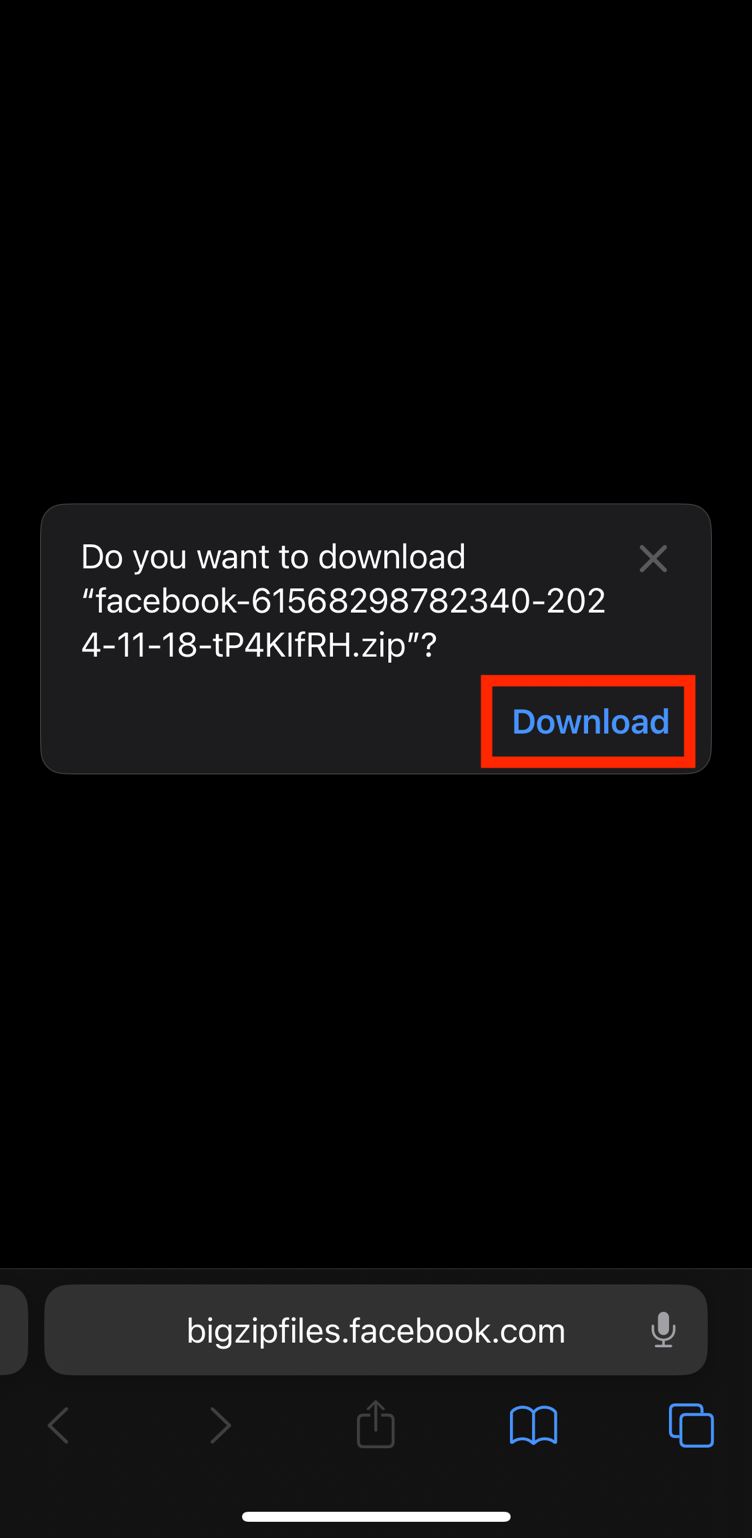
Once you click on Continue, your device browser will automatically open. Click on Download.
In the browser, click on Create files.
Your download will then start. You can click on the blue arrow on the bottom left, and then Downloads, to make sure that the process has started.
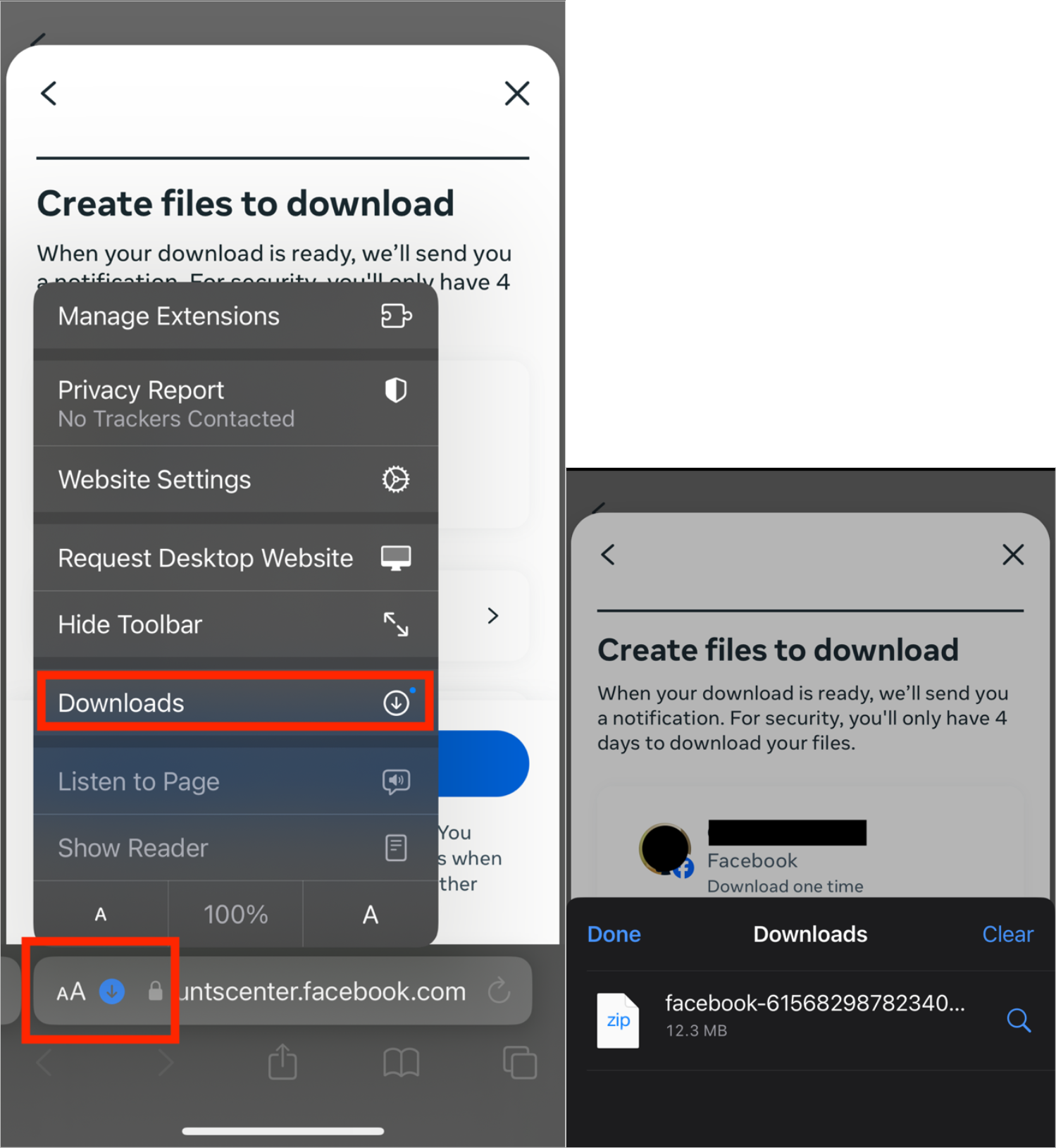
The downloaded information will be a ZIP file. In order to locate it on your device, open your Downloads folder on your device. You can find this through your device’s search bar, or by clicking directly on the ZIP file from your browser.
The Downloads folder should look like this:
